
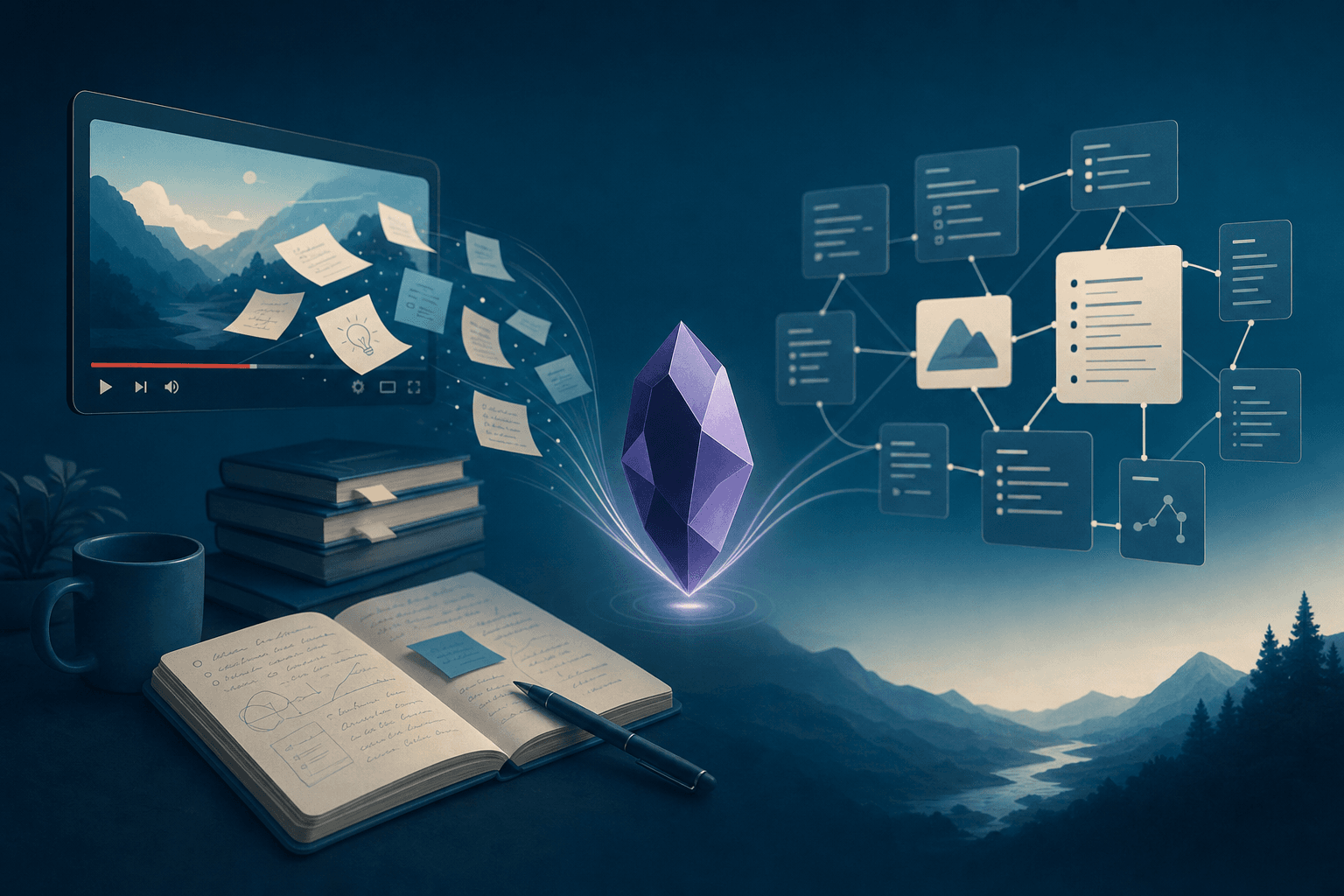
You finish a useful YouTube video, paste the link into Obsidian, and tell yourself you will process it later. Later never comes. Or you paste the whole transcript and now you have a 4,000-word caption dump you will never search.
A YouTube note in Obsidian should be something you can find, jump back into, and link. Not a graveyard of URLs.
This guide is the workflow: capture the link, pull the transcript, turn it into a structured note. Note Companion can do the fetch and the formatting. You still decide what is worth keeping.
What a useful YouTube note looks like
Skip the raw captions. Keep the parts you will actually use:
- Title, channel, and published date in frontmatter so you can filter later
- An embed (
) so you can rewatch without leaving Obsidian - A short summary of the argument, not a play-by-play
- Timestamped bullets you can click to jump to that moment
- A few tags and
[[wikilinks]]to notes you already have
That is enough to make a 40-minute video searchable. The transcript is input. It does not need to live in the finished note.
Two ways to do it in Note Companion
Both paths need a video that already has captions (or auto-captions). Note Companion fetches that transcript. It does not watch the video or invent one from the audio.
1. Paste the link in Chat
This is the fastest path when you just watched something and want the note now.
- Open Note Companion Chat.
- Paste the YouTube URL (
youtube.com/watch?v=…oryoutu.be/…). - Ask for the note you want, for example: "Summarize this video and save it as a note" or "Turn this into a timestamped outline."
- The plugin fetches the transcript and adds it to chat context. The reply is written from that text — not from a guess about the title.
- Read the draft. Ask Chat to create the note in your vault, or paste it yourself.
You stay in the conversation. If the first pass is too long, ask it to cut it down. If you need study questions, ask for the Q&A version on the same transcript.
2. Drop the link in your inbox
Use this when you are saving videos faster than you can process them — the same inbox habit you already use for everything else.
- Create a note in your inbox folder.
- Paste the YouTube URL. One line of why you saved it helps ("for the lit review," "compare with [[Spaced repetition]]") but is optional.
- Let inbox processing run.
- If the note is classified as a YouTube template, Note Companion fetches the transcript, formats the note, and suggests a folder, filename, and tags.
- Accept or override the suggestions. Move it out of inbox.
Inbox processing only fetches a transcript after it classifies the note as a youtube_* template. A random note that happens to mention YouTube will not trigger a fetch.
There is a setting for this: Automatically fetch YouTube transcripts (on by default). Turn it off if you want inbox to organize links without pulling captions.
Pick the template that matches why you watched
Note Companion ships five YouTube templates. Choose based on the job, not the video length.
| Template | What you get | Use it when |
|---|---|---|
youtube_video |
Detailed summary with optional [MM:SS] bullets |
Default for most videos |
youtube_summary |
Short recap and 3–7 takeaways | You only need the point |
youtube_timestamped_outline |
Hierarchical outline, every top section timestamped | Long lectures you will skim later |
youtube_key_concepts |
Concepts as ### headings |
Learning a topic, not a single talk |
youtube_qa |
5–12 question-and-answer pairs | Study notes and self-testing |
Timestamps in the body stay as [MM:SS]. After formatting, they become clickable links back to that moment in the video.
Sponsor reads, promo codes, and mid-roll ads are left out of the note on purpose.
File it so you can find it later
Do not build a YouTube-only folder tree. One destination is enough:
inbox/— raw links, unprocessedsources/youtube/— or whatever you already use for imported material
Rename the file to the video title (inbox can suggest this). Add two or three tags beyond youtube. Link the note to the project or concept it actually belongs to — [[Literature review]], [[Onboarding deck]], not a generic "videos" map you will never open.
If you want AI to surface older video notes when they become relevant, that is the same vault linking problem as any other source. The YouTube note is just another node.
Example: what the finished note looks like
After a youtube_video pass, you should get something shaped like this — not a transcript:
---
title: "How spaced repetition actually works"
channel: "Example Channel"
channel_url: "https://www.youtube.com/@example"
date_published: "2026-03-12"
topics: ["memory", "learning"]
tags: ["youtube", "spaced-repetition", "learning"]
summary: "Why increasing gaps between reviews beats cramming, and how to schedule the first three reviews."
---

## Channel
Example Channel
## Detailed Summary
- [01:12] Forgetting is the default; review has to interrupt it on purpose
- [08:40] First review within a day, then stretch the gap
- [14:05] Cards should test one idea, not a paragraph
Edit the summary into your own words if you will cite this later. The AI draft is a starting point, not a source.
What this will not do
- Videos with no captions. If YouTube has no transcript, the fetch fails. Write your own notes, or transcribe a downloaded file separately. That is a different problem from large audio files.
- Replace watching. Diagrams, demos, and tone still live in the video. The note is the index, not the experience.
- Guarantee a perfect classification. Inbox picks a YouTube template from the note content. If it guesses wrong, switch the template and rerun.
Dedicated transcript plugins are fine if you only want captions in a pane. This workflow is for people who want the video to show up next to the rest of their vault.
Checklist
- Confirm the video has captions before you bother
- Paste the URL in Chat, or drop it in
inbox/ - Pick a template that matches the job (full note, outline, Q&A, or short recap)
- Keep timestamps; drop the raw transcript
- File the note out of inbox and link it to one real project or concept
- Rewrite the one sentence you would actually quote
Try it on one video
Pick a video you watched this week and still cannot find. Paste the link in Chat. File the note next to the project it belongs to.
If the note is useful tomorrow, keep the habit. If it is not, the template was wrong — or the video was not worth a note.