
Inline Prompts and Chat Panels: The Two Sides of AI in Obsidian
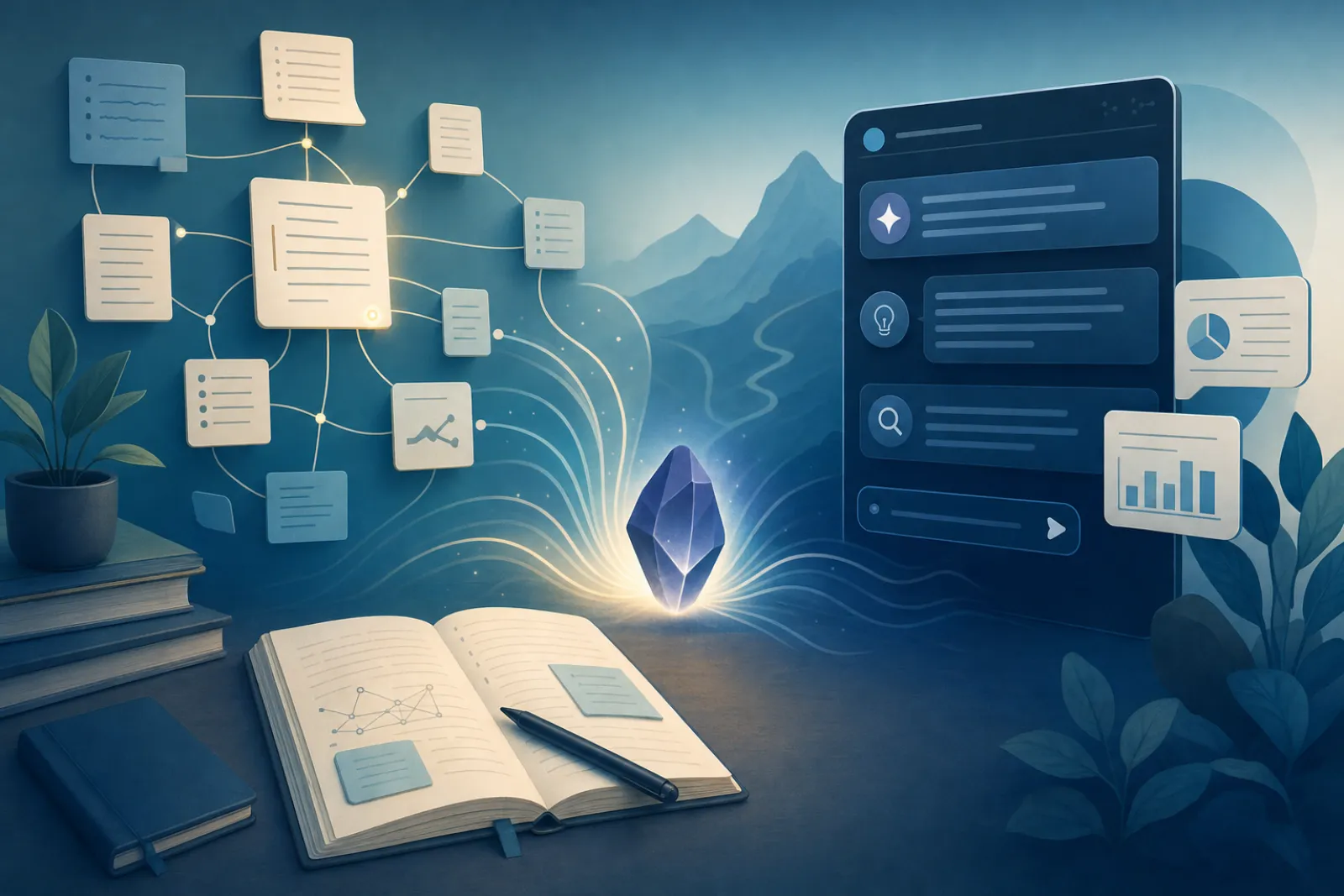
If you’ve added AI to Obsidian, you’ve likely noticed two ways it integrates into your workflow: inline prompts—where AI works right inside your note—and dedicated chat panels offering conversational AI on the side. Understanding when to use each mode can quietly transform your productivity, reducing friction and making your vault feel more responsive to your real work style.
Inline AI operates directly in the note you’re editing. Whether it’s summarizing a paragraph, refining a sentence, or generating a quick list, you invoke AI where your cursor lives. Chat panels, on the other hand, open a persistent side panel where you can converse with AI about anything: brainstorming, querying your vault, or untangling complex problems.
While both are powerful, most users default to one or the other—missing out on the compounding benefits of switching modes with intention. Let’s dig into how (and when) each approach shines.
Short answer: Use inline AI when the result should appear in the note you’re editing. Use a chat panel when you need multi-turn questions or content from across the vault. Note Companion is built for the chat-panel side (plus an Organizer); use another plugin for true inline prompts.
Inline AI: Speed and Context Without Distraction
Inline AI is your go-to for quick, localized changes. Picture this: you’re drafting research/2024-06-01-literature-review.md and want a crisp summary right after a dense block quote. Without leaving your train of thought, you:
- Place your cursor after the quote.
- Trigger your AI plugin’s inline prompt (shortcut or command).
- Review and tweak the summary that appears directly in your note.
This approach is frictionless. There’s no mental overhead from changing windows or losing your writing focus. Replacing constant context-switching with inline tweaks means less friction as you write.
Inline AI shines for:
- Summarizing or expanding on points as you go
- Quick fixes to prose or formatting
- Inserting definitions, citations, or related links exactly where needed
- Capturing fleeting ideas before they escape
A student prepping for exams might use inline AI to turn class notes into flashcards without leaving the note. Writers can rewrite awkward sentences in place, and researchers can ask for a one-sentence summary right after a pasted abstract.
Chat Panels: Vault-Wide Thinking and Iterative Exploration
Chat panels are built for deeper, broader, and more interactive sessions. When you need to:
- Brainstorm how several projects connect
- Dig into your entire vault for related concepts
- Plan a writing outline with iterative Q&A
- Explore themes that cut across folders and tags
…the chat panel becomes your vault’s command center. It’s the ideal environment for multi-turn conversations, follow-up questions, and exploratory thinking that doesn’t fit neatly into a single note.
Plugins like Note Companion’s vault chat let you reference notes or tags directly in the chat (@project-ideas, @#meeting-notes), pulling in relevant content without breaking your flow. This is invaluable when you’re making sense of months of notes or synthesizing knowledge across domains.
Chat panels are best for:
- Brainstorming and ideation
- Vault-wide querying and synthesis
- Planning multi-step tasks or projects
- Collaborating with AI over multiple turns, using @ mentions for targeted pulls
For more on vault-aware chat, see Why vault-native AI outperforms generic chatbots and Using AI to connect ideas across your vault.
Workflow Walkthrough: Integrating Both Modes Effectively
To build a workflow that leverages both styles, try this step-by-step approach:
- Map your typical note tasks: List out which actions are quick edits (summaries, expansions, clarifications) and which are big-picture (brainstorming, synthesis, cross-vault queries).
- Assign modes: Use inline AI for any task where the result lives in the current note and you want to stay in flow. Use chat panels for anything that needs back-and-forth or draws from across your vault.
- Set up quick triggers: Assign hotkeys or commands for both inline AI and opening the chat panel, so switching modes is seamless.
- Leverage @ mentions in chat: In Note Companion’s chat, type
@to mention a note, folder, or tag (not dates), e.g.@lab-resultsor a research tag, so the model gets that context. - Review your workflow weekly: Notice where you’re defaulting to one mode out of habit. Are you using the chat panel for a quick summary? Inline AI for a multi-question brainstorm? Adjust accordingly for efficiency.
Checklist: Build Your AI Interaction Rhythm
- Separate quick, note-level edits from vault-wide inquiries
- Use inline AI for text generation or refinement where you’re already working
- Rely on chat panels for brainstorming or multi-step discussions
- Take advantage of Note Companion’s chat @ mentions for focused vault queries
- Reflect weekly on your AI usage and tweak for smoother flow
Real-World Scenario: Tom’s Vault Reset
Tom, a biomedical researcher, managed a sprawling Obsidian vault with folders like inbox/raw-data.md, research/paper-summaries.md, and grants/ideas.md. He initially used inline AI everywhere, even for big-picture synthesis. The result: his notes were well-annotated, but he struggled to see connections between projects.
After reflecting, Tom split his approach:
- Inline AI: Used for writing abstracts or summarizing findings in place, such as turning messy experiment notes in
inbox/2024-06-05-lab-results.mdinto concise highlights. - Chat panel: Opened when planning new grants or exploring relationships across studies, @ mentioning a research tag and the Grant Proposal Ideas note in Note Companion’s chat to gather relevant notes for synthesis.
Within a few weeks, Tom found his notes easier to navigate and his project planning more coherent. He cut down on repetitive context switches and uncovered connections—like overlapping methodologies across experiments—that he’d previously missed.
Why Small Habit Shifts Add Up Over Time
Shifting between inline AI and chat panels based on task type may seem minor, but the productivity gains stack up. Less context-switching day to day makes Obsidian feel smoother and more enjoyable. More importantly, you’ll feel less mental friction, making Obsidian a more enjoyable and powerful workspace.
Note Companion covers the chat-panel side: @ mention notes, folders, or tags to pull them into the conversation. Pair it with an inline AI plugin if you also want in-note prompts. The real gains come from matching the mode to the task.
Unlocking a Smarter Vault
AI is most effective in Obsidian when you’re intentional about how you use it. Inline prompts keep you in the zone for quick edits; chat panels unlock deeper insights and cross-vault knowledge. By habitually choosing the right mode for the right moment, you’ll see real compound gains—turning your vault into a smarter, more responsive knowledge partner.